
If you want to create a website, blog, portfolio, or small business site without learning everything about web development, WordPress for beginners can be a practical place to start. It gives you tools to create and manage a website through a dashboard instead of building every page from code.
However, WordPress can feel confusing when you first see terms such as themes, plugins, posts, pages, widgets, and the dashboard. The good news is that you do not need to understand everything at once.
This beginner-friendly guide explains the basics of WordPress, how it works, how to start a website, and what you should learn first.
What Is WordPress?
WordPress is a content management system (CMS) that allows you to create, publish, and manage website content. It can be used for blogs, business websites, portfolios, online stores, news websites, and many other types of projects.
You can learn more about WordPress and its features in the official WordPress documentation.
One of its main advantages is flexibility. You can start with a simple website and gradually add new features as your needs grow.
WordPress itself is not the same as web hosting. WordPress provides the software used to build and manage the website, while hosting provides the server where your website files are stored.
WordPress.com vs WordPress.org
Beginners often come across both WordPress.com and WordPress.org, which can cause some confusion.
WordPress.com is a hosted service where much of the technical setup is managed for you. Depending on the plan, it can provide hosting, security, updates, and other features as part of the service.
WordPress.org provides the WordPress software that you can install on your own web hosting. This gives you more control over themes, plugins, website settings, and customization.
For someone who wants greater control over a website and plans to learn website management, self-hosted WordPress can be a useful option.
What Do You Need to Start a WordPress Website?
Before creating a website, you generally need three basic things:
- A domain name: This is the address people use to visit your website.
- Web hosting: This provides the server space where your website is stored.
- WordPress: The software used to build and manage the site.
WordPress for beginners becomes easier to understand when these three basic components are clear from the start.
When you first hear about domains, hosting, and WordPress, it can seem like you need to understand all three before getting started. You really don’t. Think of them as different parts of the same setup: your domain is the address, hosting is where the website lives, and WordPress is what you use to manage it. Once you see how these pieces fit together, the whole process becomes much easier to understand.
After purchasing hosting and connecting your domain, many hosting providers offer an easy WordPress installation process.
You can then access the WordPress dashboard and begin setting up your website.
How to Start a WordPress Website
Starting a WordPress website becomes easier when you break the process into smaller steps.
1. Choose a Domain and Hosting
Select a domain name that is relevant to your website and easy to remember. Then choose a hosting provider that supports WordPress and provides the resources your website needs.
Avoid choosing a domain simply because it contains keywords. A clear and memorable name is usually more useful for building a recognizable website.
2. Install WordPress
Most modern hosting services provide an installation option for WordPress. After installation, you can log in to your website’s administration area.
The dashboard becomes your main control center for managing content, appearance, plugins, users, and settings.
3. Choose a Theme
A WordPress theme controls much of your website’s visual appearance and layout.
You can choose a theme based on the type of website you are building. Look for a theme that is responsive, regularly maintained, lightweight, and compatible with the features you need.
You do not need to spend hours customizing everything when starting out. Begin with a clean layout and improve the design as your website develops.
4. Understand the WordPress Dashboard
The dashboard contains the main options you will use to manage your website.
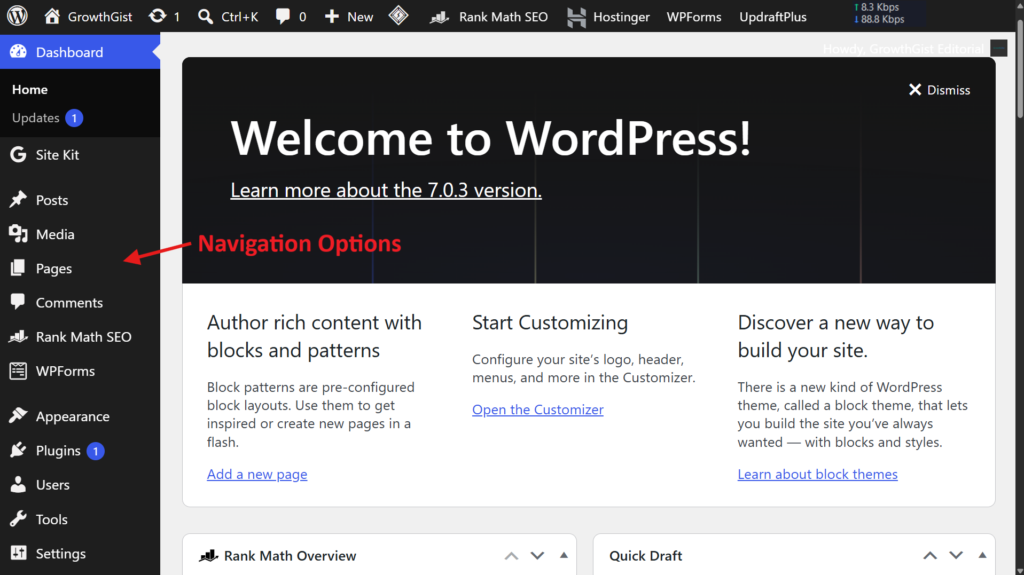
Some important areas include:
- Posts for publishing blog articles
- Media for managing uploaded images and files
- Pages for permanent website sections
- Comments for managing visitor comments
- Appearance for controlling design-related settings
- Plugins for adding functionality
- Users for managing website accounts
- Tools for additional features
- Settings for configuring important website options
Learning where these features are located will make WordPress much easier to use.
The official WordPress Administration Screens documentation provides a detailed overview of these dashboard areas.
Your first WordPress website does not need to look perfect. In fact, trying to get every design detail right before publishing can make the process unnecessarily slow. Start with the essentials, get the basic structure working, and make improvements as you become more comfortable with the platform. You will learn much more by actually working inside WordPress than by trying to memorize every option beforehand.
Posts vs Pages in WordPress
Posts and pages serve different purposes.
Posts are generally used for regularly published content such as blog articles, tutorials, news, and updates. They can be organized using categories and tags.
Pages are normally used for relatively permanent information such as About, Contact, Privacy Policy, Terms and Conditions, and Disclaimer pages.
| Feature | Posts | Pages |
|---|---|---|
| Main purpose | Regular, time-based content | Permanent website content |
| Examples | Blog articles, news, updates | About, Contact, Services |
| Date-based | Usually yes | Usually no |
| Categories & tags | Commonly used | Not normally used |
| Appears in blog feed | Yes | Usually no |
| Best for | Frequently published content | Important site sections |
Understanding this difference helps you organize your website properly from the beginning.
This is one of those small WordPress concepts that becomes obvious after using the platform for a while, but it can be confusing at first. A simple way to decide is to ask yourself whether the content is something you expect to publish regularly or something visitors may need to find as part of your main website navigation. Keeping this distinction in mind will also make your content easier to organize as the site grows.
How to Create Content in WordPress
WordPress uses a block-based editor, also known as the Gutenberg editor, that lets you build content using different blocks. You can learn more about getting started with the WordPress editor through the official WordPress Block Editor documentation.
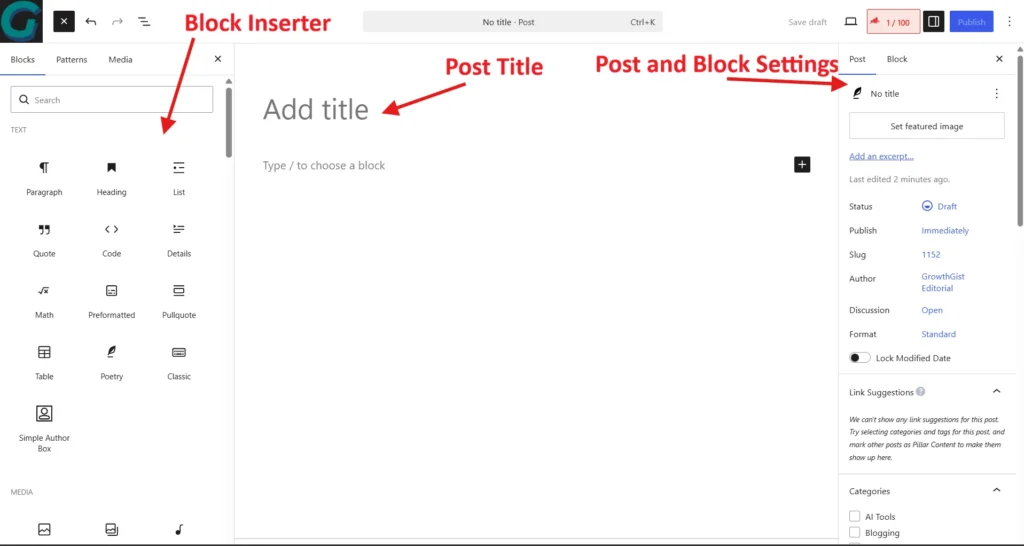
You can add headings, paragraphs, images, lists, buttons, quotes, tables, and other elements without writing HTML manually.
When creating an article, start by organizing your main ideas into sections. Use clear headings, short paragraphs, relevant examples, and useful visuals where appropriate.
Before publishing, check the title, URL, images, links, formatting, and overall readability.
What Are WordPress Themes and Plugins?
Themes and plugins are two important parts of the WordPress ecosystem, but they serve different purposes.
A theme primarily controls how your website looks and how its layouts are presented.
A plugin adds or extends functionality. For example, a plugin may provide contact forms, SEO features, security tools, backups, caching, or other capabilities.
Avoid installing plugins simply because they look interesting. Too many unnecessary plugins can make website management more complicated, so install only those that provide a genuine benefit.
WordPress and SEO
WordPress provides a useful foundation for SEO, but simply using WordPress does not automatically make a website rank well.
You still need to create useful content, understand what people are searching for, organize your pages properly, and make your website accessible to search engines.
Basic SEO practices include:
- Researching relevant keywords
- Creating helpful and original content
- Writing descriptive page titles
- Using clear headings
- Optimizing images
- Creating useful internal links
- Improving website speed and mobile usability
- Monitoring search performance
SEO should be treated as an ongoing part of website management rather than a one-time task.
Essential WordPress Maintenance
Once your website is live, regular maintenance becomes important.
Keep WordPress, themes, and plugins updated. Use strong passwords and appropriate user permissions. Maintain regular backups so you have a recovery option if something goes wrong.
You should also perform an SEO audit periodically to check your website for broken links, outdated content, unnecessary plugins, security issues, and performance problems.
A small maintenance routine can prevent many avoidable problems later.
Is WordPress Good for Beginners?
Yes, WordPress for beginners can be a good choice because you can start with basic features and gradually learn more advanced options.
You do not need to master themes, plugins, SEO, security, and customization before publishing your first page. Learn each part when you actually need it.
The best approach is to start with a simple website, practice creating content, understand the dashboard, and improve the site step by step.
One thing that makes learning WordPress easier is accepting that you will probably make a few mistakes along the way. You may change a theme and dislike the result, install a plugin you later remove, or spend time looking for a setting you cannot immediately find. That is normal. The important part is to understand what changed, fix the problem, and keep experimenting. Over time, the dashboard and its terminology will start to feel familiar.
A Simple WordPress Learning Path
If you are completely new to WordPress, follow this order:
- Understand what WordPress is.
- Learn the difference between WordPress.com and WordPress.org.
- Set up your domain and hosting.
- Install WordPress.
- Learn the dashboard.
- Choose and customize a theme.
- Create pages and blog posts.
- Learn how themes and plugins work.
- Set up basic SEO and security.
- Maintain and improve your website regularly.
💡 Key Takeaway
Start with the essentials, publish your website, and improve it as you learn. You don’t need advanced WordPress skills to create a useful website.
Final Thoughts
WordPress for beginners becomes much less complicated once you understand what each major component does. The dashboard manages your website, themes control much of its appearance, plugins add functionality, and posts and pages help you organize your content.
Start with the basics instead of trying to install every available feature. Focus on creating a useful website, learn the tools you actually need, and improve your skills as your website grows.
With consistent practice, even a complete beginner can learn how to use WordPress and build a functional website without becoming a professional developer.

GrowthGist was founded by Ishwar Solanki to provide clear, practical, and beginner-friendly content on SEO, blogging, AI tools, productivity, website optimization, and digital growth. The platform helps readers build valuable digital skills and strengthen their online presence through actionable insights and reliable information.